

社交聆听帖子视图
以下权限:
- socialmedia > postDetail > All Permissions
- socialmedia > postDetail > View (view social listening posts section under Analytics Workspace)
- socialmedia > message > Escalate (manually escalate an ingested post to an agent for response)
- Messaging > Integration > View (view the list of integrations that you created and manually escalate a post by selecting an integration)
- socialmedia > topic > View (view the social listening topics in the filters section)
The Social Listening Posts view provides a unified view of all public posts and comments captured through your configured data ingestion rules across different platforms, including Open Messaging, X (formerly Twitter), Instagram, Google Business Profile, and Facebook.
导航
要查看社交聆听帖子,请点击表现>工作区>社会的>社交聆听帖子。
要查看社交聆听帖子,请执行以下操作:
- 点击菜单 > 分析>分析工作区。
- 在默认部分,搜索社交聆听帖子然后单击视图名称将其打开。
在工作区中设置默认时区
在查看任何分析视图之前,您可以在分析工作区中设置默认时区。
要在工作区中设置默认时区,请执行以下步骤:
- 单击 “ 性能” > “工作区”。
- 点击菜单 > 分析>分析工作区。
- 在左侧,从时区下拉菜单中,选择所需的时区作为分析工作区的默认时区。
Social Post Insights and Metrics
This view provides the following key insights about each ingested post or comment:
Post Details
Each post displays the following basic information:
- Username: The account or user who created the post or comment.
- Timestamp: When the post or comment was published.
Note: Some platforms do not always provide these details. These details appear only when available.
Sentiment
An emoji indicates the sentiment of each post — showing whether it’s positive, negative, or neutral. This sentiment is automatically detected using our AI-powered sentiment analysis models, helping you quickly gauge how people feel about your brand or topic.
Engagement Metrics
Engagement metrics show how people interact with social media posts, indicating the attention or interest a post receives. These insights help you measure audience engagement and identify posts that are performing well. These metrics include:
- Likes – Someone liked the post.
- Comments – Someone replied to or commented on the post.
- Shares – Someone shared the post with others.
- Views – Someone watched a video or viewed the post.
List of platforms and their engagement metrics:
| 平台 | Engagement metrics |
|---|---|
| X |
Supports engagement metrics, including likes, shares, and comments. |
|
|
|
|
|
Google 商家资料 |
Does not support the likes engagement metrics. |
View Post
Each entry in the view includes a view post link. Click View Post to view the original post on its native social media platform.
View Review
Each entry in the view includes a view review link. Click View Review to view the original post on your Google Business Profile locations where the review has been added. The Google Business Profile supports only the reviews made on your Google Business Profile locations and does not support ratings.
View Information
Each entry in the view includes an information icon. Click View Review to view the information about the topic and the data ingestion rule used to retrieve this data.
媒体
Media refers to the images and videos in the public posts. By default, media is blurred when our AI algorithms detect that the media is not safe for work. To view or hide the media, perform any of the following:
- To view the media, click Show content.
- To hide the media, click Blur content.
Manual post escalation
Administrators or supervisors with the necessary permissions can escalate a particular post to an agent for a response if it requires the agent’s attention. To manually escalate a post, perform the following:
- In the upper right corner of the required post to be escalated, click Escalate
 icon. The Integrations window opens.
笔记:管理员为该平台配置的集成会出现在集成列表中。如果管理员没有为帖子添加任何集成,则该帖子无法升级。 - Select the required integration from the drop-down menu. Upon successful escalation, a successful in-app notification appears.
笔记:一个社交帖子只能升级一次。

Data Coverage
This view allows you to monitor social media content based on specific data coverage rules for each platform.
| 平台 | Data Captured |
|---|---|
| X |
You can track all public posts and comments based on the data ingestion rules you have created. |
|
|
|
|
|
Google 商家资料 |
|
Data Retention
All public social posts ingested into Genesys Cloud are stored for 60 days from the date they were collected. After 60 days, these posts are automatically removed from the system and will no longer be visible. For example, if a post was ingested on June 1, it will be automatically deleted after July 31.
If a post or comment has been escalated to an agent, it is not deleted after 60 days. Instead, it will be retained according to your organization’s retention policy. The escalations can be done by any of the following ways:
- Automatically, based on a configured escalation rule.
- Manually, when a user escalates a specific post or comment to an agent for a response.
Save view
要 使用筛选器和列设置 保存视图,请单击 “ 保存” 。
Refresh view
This view updates automatically except when you use filters from the Filters pane. To see the most current data, click Refresh .
自定义视图
要仅显示某些数据,请使用任意过滤器组合自定义社交聆听绩效视图。例如,您可以选择仅显示某些过滤器以查看某些类型的数据。您还可以将过滤器和列设置保存为已保存的视图在同一视图中快速切换不同的感兴趣的数据。
要按交互信息进行过滤,请点击切换过滤器面板,然后搜索或滚动选择要使用的过滤器。
交互列表
| 过滤 | 描述 |
|---|---|
| 主题 |
Choose the required topic from the list of topics created with different data ingestion rules. You can view all the deleted topics and data ingestion rules when no topic is selected. You cannot view all the deleted topics or data ingestion rules when applying a filter. |
| 帖子 |
选择所需的升级类型:
|
| 情感 |
选择所需的情绪类型:
|
| 平台 |
选择所需的平台:
|
| 国家/地区 |
选择所需的国家。 |
| 语言 | 从支持的语言列表中选择所需的语言。 笔记:由于较小帖子(少于五个单词)的语言检测准确率较低,Genesys Cloud 会跳过较小帖子的语言检测算法,并将语言标记为未知。 |
| 单词或短语 |
Displays posts that contain specific words or phrases. Filter for specific words or phrases that include or exclude certain words or phrases. Select the word or words that you want. Filter for multiple words by entering more words and searching again. 您可以选择喜欢的单词或短语,并根据所选的单词或短语过滤数据。默认情况下,包括选项已启用。您可以选择同一级别中的单个或多个单词或短语,然后查看筛选结果。此级别中的单词通过“或”连接在一起。您可以使用+AND 与单词或短语选项可添加另一层必须通过 AND 连接在一起的单词或短语。此选项允许您对帖子执行分层分析。 |
| 内容类型 |
Save your filter settings for quick access later.
要自定义分析视图,请使用预设日期范围。
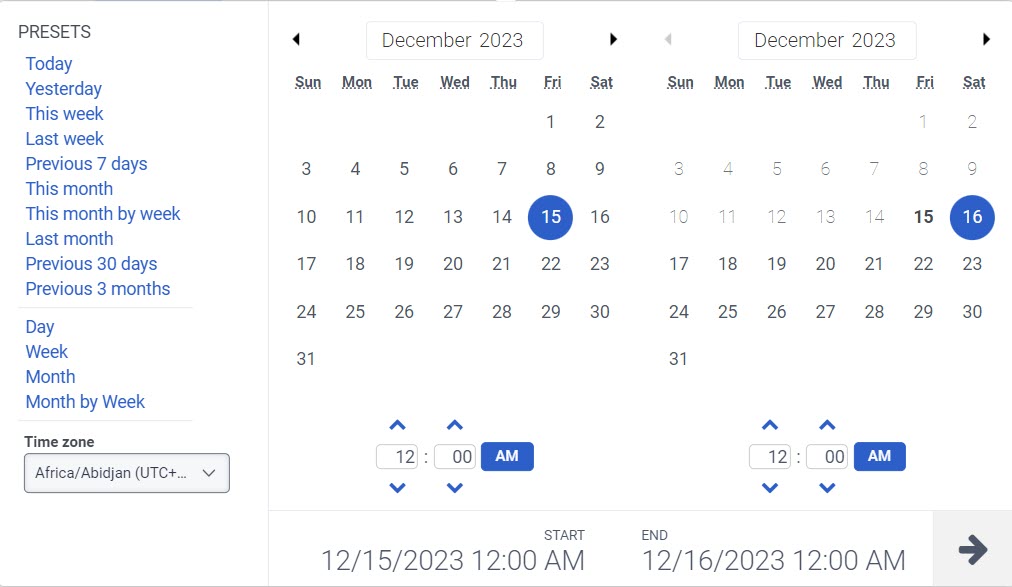
要按日期过滤指标或配置自定义日期范围,请使用预设。 过滤此视图的指标时,选择最长 6 周的任何自定义日期范围。
要使用预设筛选量度,请完成以下步骤:
- 要显示日期筛选器,请单击日期。
- 在 “预设” 列表中,选择一个预设日期选项。
日期预设
| 预设 | 描述 |
|---|---|
| 今天 | 显示当日数据。 |
| 昨天 | 显示前一天的数据。 |
| 本周 | 显示本周的数据,即周日至周六。 |
| 上周 | 显示前一周(周日至周六)的数据。 |
| 前 7 天 | 显示过去七天的数据。 |
| 本月 | 显示当月的数据,没有额外的天数。 |
| 按周显示本月 | 显示从星期日开始到星期六结束的当前日历月的数据,如果该月不是从星期日开始或在星期六结束,则包括额外的天数。 |
| 上月 | 显示上一个日历月的数据,没有额外的天数。 |
| 前 30 天 | 显示过去 30 天的数据。 |
| 前 3 个月 | 显示过去 3 个月的数据。例如, 2022 年 11 月 1 日 – 2023 年 1 月 31 日。 |
| 日 | 显示一天 24 小时的数据。 |
| 周 | 显示周日至周六时间段的数据。 |
| 月 | 显示确切月份的数据,没有额外的天数。 如果选择当前月份,您可以查看截至当前日期的数据。 |
| 按周显示月 | 显示从星期日开始到星期六结束的日历月的数据,如果该月不是从星期日开始或在星期六结束,则包括额外的天数。 |
- 要使用自定义日期范围筛选指标,请完成以下步骤:
-
- 单击日期以显示日期筛选器。
- 在日历上选择开始日期和结束日期,然后单击筛选箭头。
- 要使用相同的日期预设查看不同时间段的数据,请单击日期显示两侧的箭头。例如,要查看前一天的数据,请点击天预设,然后单击日期左侧的箭头。
要按日期对社交聆听帖子进行排序,请在左上角的“最新”下拉菜单中选择所需的任意一种排序类型:
- Newest first (Default)Select this option to sort the social listening posts by the most current or newest date.
- Oldest firstSelect this option to sort the social listening posts by the oldest date.
- Due to Instagram’s privacy policies, user profile information, including usernames or profile pictures, is displayed only when the user directly interacts with your brand.
- If a user only comments on a public post or reel without sending a direct message, their profile details are not visible in this view.
- For the Open Messaging channel, post types are not available.
- Public data can be escalated only once. Repeat escalations are not allowed. If you attempt to escalate the same post or comment again, you’ll see an error message, or the escalate icon will appear disabled.