

在机器人对话中使用卡片
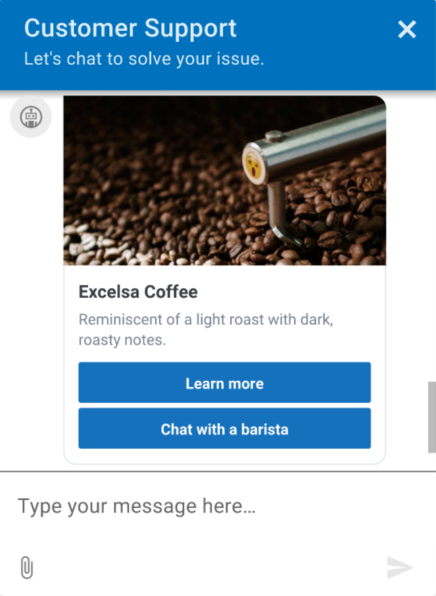
卡片包含图像、标题、正文和按钮列表。 客户可以通过单击按钮与卡片进行交互。 卡片包含两种类型的按钮: 回短信和网址。 文字后退按钮成为发回给机器人的消息的一部分,并成为对话的一部分。 Web URL 按钮允许客户快速访问相关网站,并使您能够提供有关产品或产品的更多详细信息。 客户与他们互动后,卡片不会消失,因此,他们可以与卡片进行多次互动。
示例 Genesys 网络信使中的卡
机器人和渠道支持
快速回复允许快速、结构化的回复,使您能够通过从选项列表中进行选择,为直接消息提供简单、有指导的答案。 卡片通过引入图片、标题、正文以及可选的外部网站引荐来提供对产品和服务的更精细的描述。 快速回复通过增强客户的自动化体验和更快速地解决问题来促进机器人对话。
目前支持的机器人:
- Google Dialogflow
- Google Dialog Flow CX
- 数字机器人连接器
- Bot Connector
目前支持的机器人:
- Genesys Web 消息传递
- Facebook Messenger
- WhatsApp Messenger
- 笔记:在 Open Messaging 中使用此功能之前,您必须先创建一个配置文件并选择适当的卡片消息类型。然后,将其分配给您的开放消息传递集成。有关详细信息,请参阅创建并分配配置文件。开放消息
卡片实施的注意事项
当你在机器人回复中设计和实现轮播结构时,请考虑以下限制:
- WhatsApp、LINE 或 Twitter 不支持默认操作。 如果在这些应用程序中配置默认操作,则应用程序将忽略它们。
在 WhatsApp 中配置卡片时,请记住以下注意事项:
- WhatsApp 最多支持三个带卡的按钮。 如果配置了三个以上的按钮,则会发生错误。
- WhatsApp 支持仅限于文本返回按钮。 WhatsApp 不支持网址按钮。
- 客户可以选择每个文本后退按钮一次,而不限于一个选择。 你的机器人行为应考虑到用户可以选择多个选项的情况。
- WhatsApp 不支持卡片机器人响应中的默认操作。
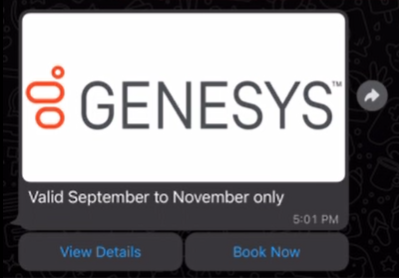
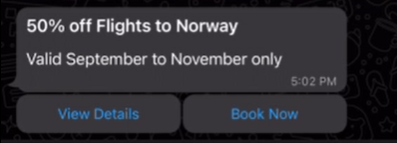
- 包含图像或视频的卡片不显示标题。 仅使用文本时,将显示标题。
例如,如果您配置标题为 “飞往挪威航班 50% 的折扣” 的卡片并包含图片,则标题不会显示:
如果您为卡片配置了标题而没有图像,则卡片中将显示标题:
仅限谷歌 DialogFlow ES:
这些部分介绍了如何将快速回复整合到 Google Dialogflow ES 机器人中,并包括用例示例和其他资源。
- 安装来自 Genesys AppFoundry 的谷歌对话流集成。
- 配置谷歌 Dialogflow 平台服务帐号凭据。
- 启用谷歌对话流集成。
- 要在 Dialogflow 控制台中设置快速回复选项,请使用此自定义 JSON 为机器人的意图定义选项:
{
    "genesys_prompt": "String", // optional message text
    "genesys_carousel": [
         {
              "title": "String", // mandatory cards title line
              "description": "String", // optional cards body text explaining its purpose
              "image": "URL", // optional a URL pointing to the image shown in the card
              "defaultAction":  {
                    "type": "String", //Describes the type of action. Valid values Link Postback
                    "text": "String", //The response text from the button click
                    "payload": "String", // Text to be returned as the payload from a ButtonResponse when a button is clicked.
                    "url": "String" //A URL of a web page to direct the user to.
              },
              "actions": [
                    {
                         "type": "String", //Describes the type of action.  Valid values Link Postback
                         "text": "String", //The response text from the button click
                         "payload": "String" // Text to be returned as the payload from a ButtonResponse when a button is clicked.
                    },
                    {
                         "type": "String", //Describes the type of action.  Valid values Link Postback
                         "text": "String", //The response text from the button click
                         "url": "String" //A URL of a web page to direct the user to.
                    }
              ]
         }
    ]
}
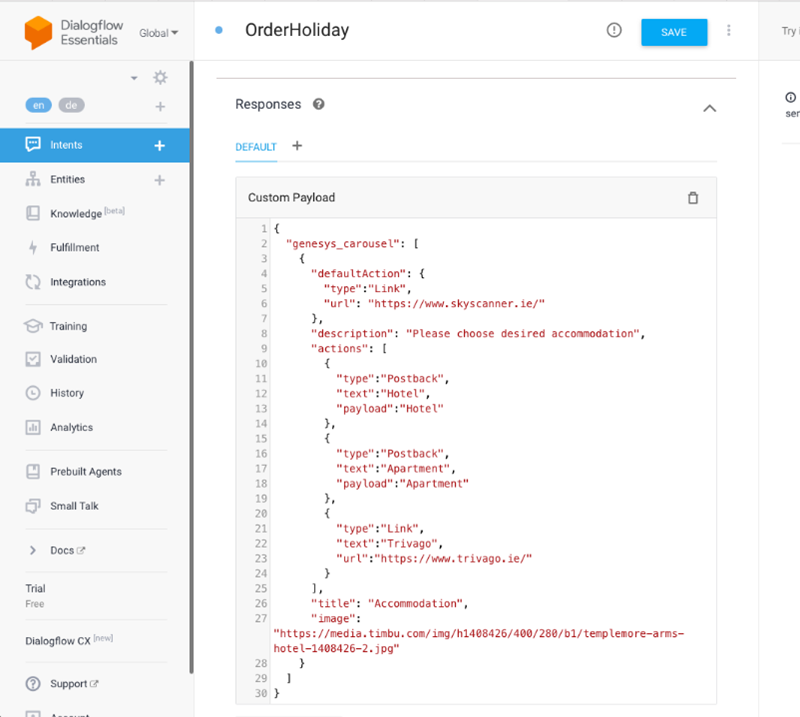
要使用卡片选项在机器人的意图之间切换,请在 Dialogflow 控制台中,将上一节中的自定义 JSON 添加到响应输入字段中:
谷歌云 DialogFlow ES 示例
点击图片放大。
谷歌云 DialogFlow 客户体验示例
点击图片放大。
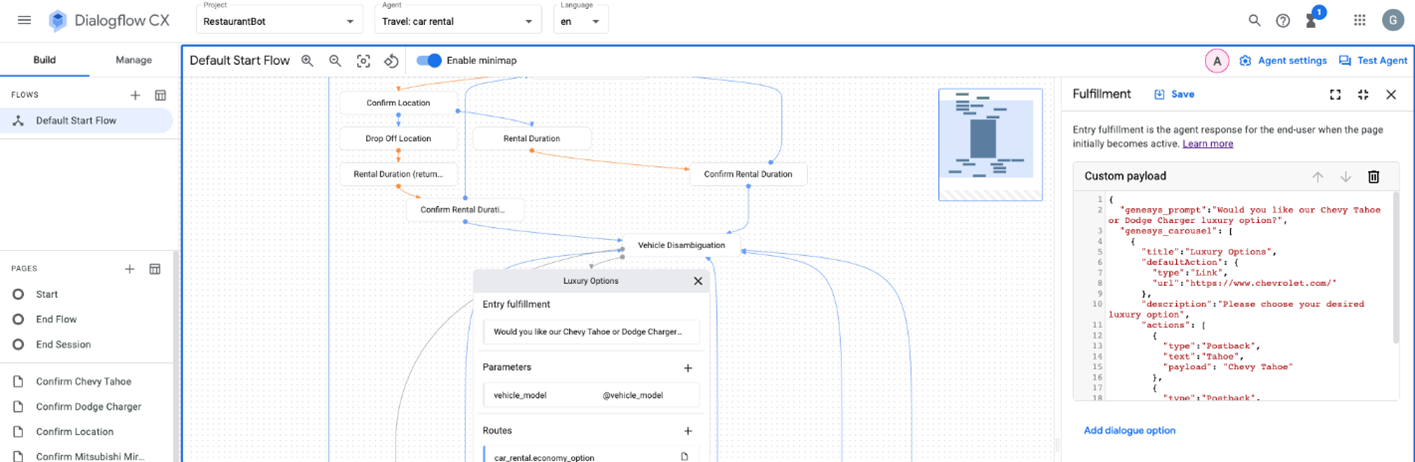
要使用卡片选项来填充机器人的插槽,请使用上一节中的自定义 JSON 到 webhook。 为此,您还可以使用 AWS lambda。 有关详细信息,请参阅 用于插槽填充的 Webhook 在 Google Cloud Dialogflow ES 指南中。
数字机器人连接器
这些部分描述了如何将卡片合并到您的 Genesys Digital Bot Connector 机器人中,并包括其他资源。
- 创建符合 Genesys Digital Bot Connector 规范的机器人。
- 配置 Genesys Digital Bot Connector 集成。
- 使用 Genesys 标准化格式来定义卡片。
    {
      "type": "Structured",
      "content": [
        {
          "contentType": "Card",
          "card": {
            "title": "50% off Flights to Norway",
            "description": "Valid September to November only",
            "image": "https://www.samplesite.com/photo/1234.jpg",
            "defaultAction": {
              "type": "Link",
              "url": "http://www.samplesite.com/flights/norway"
            },
            "actions": [
              {
                "type": "Link",
                "text": "View Details",
                "url": "http://www.samplesite.com/flights/norway"
              },
              {
                "type": "Postback",
                "text": "Book Now",
                "payload": "I want it"
              }
            ]
          }
        }
      ]
    }
Bot Connector
这些章节介绍了如何将快速回复整合到 Genesys Bot Connector 机器人中,以及如何包含其他资源。